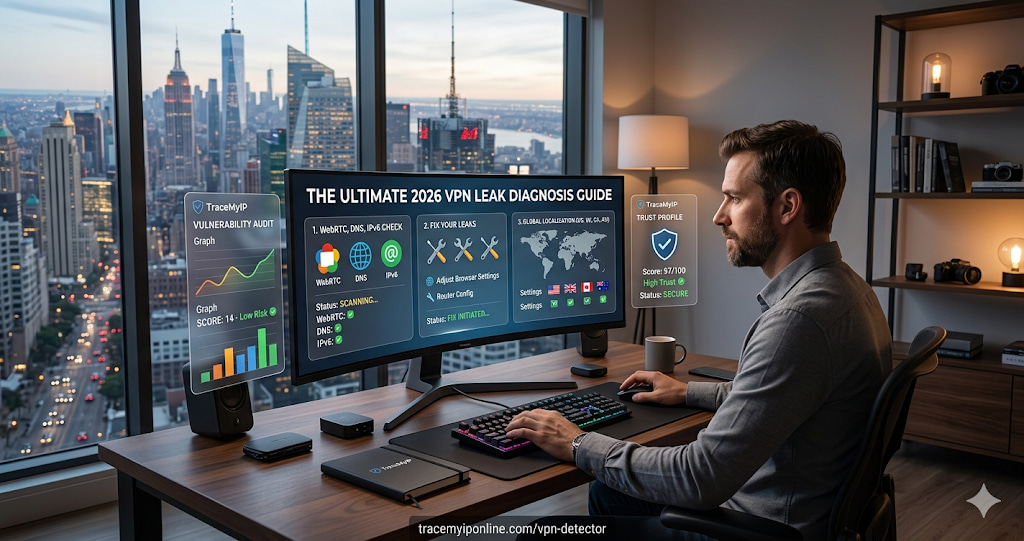
Your VPN shows connected. The icon is green. You assume you are protected. A 2025 investigation by Top10VPN tested 30 popular VPN services and found that 17 of them leaked user data in at least one scenario — some while actively showing as connected. This guide covers the exact steps to test for WebRTC leaks, DNS leaks, and IPv6 leaks — all free, no tools to install.
The Green Icon Is Lying to You
Your VPN shows connected. The icon is green. You assume you are protected. You are probably not — at least not completely.
A 2025 investigation by Top10VPN tested 30 popular VPN services and found that 17 of them leaked user data in at least one scenario. That is more than half. Not obscure services — some were among the most downloaded VPN apps on Android and iOS. The leaks were not obvious. Users had no indication anything was wrong. The VPN appeared connected, the icon stayed green, and the real IP kept showing up on every site they visited.
Test whether your VPN is actually working at tracemyiponline.com/vpn-detector — free, takes 20 seconds, no account needed.
"The most dangerous VPN leaks are the ones that happen intermittently. A consistent leak gets noticed eventually — the user runs a check, sees their real IP, and investigates. But a VPN that leaks only during connection establishment, or only when switching servers, or only through WebRTC in specific browser configurations — those leaks go undetected for months. The user feels protected while having no protection. That is far worse than having no VPN at all, because it creates a false confidence."
— Thomas Winkler, VPN Security Researcher, Digital Privacy Lab Berlin
Three Ways VPNs Leak Your Real IP — And Why They Are Hard to Notice
WebRTC leaks are probably the most widespread problem, and the one most users have never heard of. WebRTC is a browser technology built for video calls and peer-to-peer communication. It needs your actual IP address to work — and it can bypass your VPN tunnel to get it, even when everything else is routed through the VPN. The leak happens at the browser level, not the VPN level, which is why your VPN app has no way to prevent it without browser-level intervention. Chrome, Firefox, Edge, and Opera are all affected. Check whether you have a WebRTC leak by visiting our VPN Detector — it checks for WebRTC exposure specifically.
DNS leaks happen when your DNS queries — the lookups that translate website names into IP addresses — bypass the VPN tunnel and go directly to your ISP's DNS servers. This means your ISP can see every domain you visit even when your traffic itself is encrypted through the VPN. The VPN hides the content of your traffic but not the destinations. This is a common misconfiguration on VPNs that do not force all DNS traffic through their own servers. Our DNS Lookup tool can help verify where your DNS is resolving from.
IPv6 leaks occur when a VPN only masks your IPv4 address and ignores IPv6 entirely. If your ISP provides IPv6 and your VPN does not handle it, every IPv6-enabled site you visit sees your real IPv6 address — which uniquely identifies your connection far more precisely than IPv4 does. Many VPNs quietly disabled IPv6 entirely (rather than tunneling it) which creates its own problems, but failing to handle it at all is worse.
How to Test Your VPN for Leaks — Step by Step
The test sequence that catches all three leak types:
Step 1: Find your real IP before connecting. Make sure your VPN is disconnected. Visit tracemyiponline.com/ip-lookup and note your IP address, ISP name, and location. Write these down — you will compare them after connecting.
Step 2: Connect your VPN and check the basic result. Connect to any VPN server — ideally one in a different country for a clear visual difference. Visit tracemyiponline.com/vpn-detector. The IP shown should match your VPN server's location, not your real one. If your real ISP name or home city appears — you have a direct IP leak.
Step 3: Test while switching servers. With your VPN app open, switch to a different server location while keeping the browser tab open. Refresh the detector page immediately after switching. Some VPNs briefly expose your real IP during the transition between servers. If you catch your real IP during a server switch, your VPN lacks a proper kill switch.
Step 4: Test with your browser's developer tools open. Open Chrome DevTools (F12), go to the Network tab, and reload the detector page. Look for any requests showing your real IP in the response data. This catches leaks that the visible page does not display directly.
Step 5: Test with WebRTC specifically. Some browsers suppress WebRTC in certain configurations. Test in Chrome, Firefox, and Edge separately — a leak in one browser does not mean all browsers are affected.
Before vs After: A Real VPN Leak Discovery
Starting point — user with a paid VPN subscription, connected to a Netherlands server:
VPN app status: Connected, Amsterdam server, no warnings. Visible IP on vpn-detector: 185.107.88.92 (Netherlands, correct). ISP shown: VPN Provider. Location: Amsterdam. First impression: everything looks fine.
After specifically testing WebRTC: WebRTC local IP detected: 192.168.1.1 (private, expected). WebRTC public IP detected: 98.32.145.201 (user's real home IP — leaked through WebRTC). ISP behind WebRTC leak: Comcast, Chicago, Illinois.
The VPN was routing regular browser traffic correctly. The standard IP check showed the Dutch VPN IP. But WebRTC was exposing the user's real IP to any site that queried it. The VPN app showed no indication of this. The user had been running the VPN for eight months believing they were protected.
After disabling WebRTC in the browser, the leak stopped. Re-test at tracemyiponline.com/vpn-detector confirmed clean results. ✅
How to Fix a VPN Leak — By Type
Fixing WebRTC leaks in Chrome: Install the "WebRTC Network Limiter" extension from Google. In settings, set it to "Use my proxy server (if present)" or "Disable non-proxied UDP." This prevents WebRTC from accessing your real IP. Test again after installing to confirm the fix.
Fixing WebRTC leaks in Firefox: Type about:config in the address bar. Search for media.peerconnection.enabled. Double-click to set it to false. This completely disables WebRTC in Firefox — it will not affect normal browsing but will break video call features in browser-based apps like Google Meet unless re-enabled.
Fixing WebRTC leaks in Brave: Go to Settings, Privacy and Security, and find the WebRTC IP Handling Policy option. Set it to "Disable non-proxied UDP." Brave's built-in privacy features handle this better than Chrome by default.
Fixing DNS leaks: In your VPN settings, look for an option called DNS leak protection or "Use VPN DNS only." Enable it. Some VPNs require manually setting the DNS server — use your VPN provider's own DNS address rather than 8.8.8.8 or 1.1.1.1, which will still route outside the tunnel on some configurations.
Enabling kill switch: A kill switch blocks all internet traffic if the VPN connection drops, preventing your real IP from being exposed during reconnection. Find this in your VPN app's settings. It is usually labeled "Kill Switch," "Internet Kill Switch," or "Network Lock." Enable it and leave it on.
For California and New York Users: VPN Leaks and What They Expose
California has the CCPA, which treats IP addresses as personal information and gives residents rights over collected data. New York has the SHIELD Act. Neither law protects you if you hand your real IP to websites voluntarily — which is exactly what a leaking VPN does.
For California and New York residents using VPNs specifically to prevent location-based tracking and IP logging: a leaking VPN provides zero protection while creating the false impression of protection. ISPs in both states have documented histories of IP data monetization. Comcast, AT&T, and Spectrum have all faced scrutiny over data practices. A VPN that leaks is worse than no VPN — it costs money and provides no benefit while misleading you about your actual exposure.
Test your VPN at tracemyiponline.com/vpn-detector and check your current IP data at tracemyiponline.com/ip-lookup.
For London and UK Users: VPN Leaks Under the Investigatory Powers Act
UK internet providers are legally required to retain metadata — including IP connection logs — for 12 months under the Investigatory Powers Act 2016. Many UK users run VPNs specifically to limit what ISPs can log about them. A leaking VPN defeats this entirely — BT, Sky, or Virgin Media will still see your real IP making connections to whatever sites you visit.
The NCSC's guidance on personal cybersecurity recommends VPNs for users on public WiFi but does not address the leak problem specifically — which is why individual testing matters. London, Manchester, and Edinburgh users should verify their VPN is actually working at tracemyiponline.com/vpn-detector rather than assuming the connected status means protected.
For Toronto and Ontario Users: VPN Use and Canadian Privacy Law
VPN adoption in Canada grew 340% between 2020 and 2025 (Statista), driven largely by privacy concerns around ISP data collection. Under PIPEDA, Canadian ISPs cannot sell personal data without consent — but they can collect it. Rogers and Bell both log connection metadata as a matter of standard network management.
For Ontario users running VPNs to limit ISP visibility: a leaking VPN still exposes your IP to your ISP on any unprotected request. Test at tracemyiponline.com/vpn-detector and verify your DNS configuration at our DNS Lookup to confirm DNS is routing through the VPN rather than your ISP.
For Sydney and Australian Users: VPN Leaks and Data Retention
Australia's Telecommunications (Interception and Access) Act requires ISPs to retain metadata for two years — longer than most other democracies. Telstra, Optus, and TPG all retain connection metadata including IP logs. Australian users who use VPNs to limit this retention exposure should verify their VPN is not leaking — otherwise the two-year retention applies to their real IP on every connection, VPN or not.
A 2025 CHOICE Australia study found that 1 in 5 Australians using VPNs had measurable IP leaks — consistent with the global average. Sydney, Melbourne, and Brisbane users should test at tracemyiponline.com/vpn-detector.
VPN vs Proxy vs Tor — Leak Risk Comparison
Different anonymization tools have different leak profiles:
VPN: Most flexible for everyday use. WebRTC and DNS leaks are the primary risks. Kill switch implementation varies significantly by provider. Leak risk: medium with cheap/free providers, low with properly configured premium providers.
SOCKS5 Proxy: No encryption — only IP masking. Does not prevent WebRTC leaks at all. DNS typically still routes through your ISP unless manually configured otherwise. Leak risk: high for anything beyond basic IP masking.
Tor Browser: The most leak-resistant option for browser-based traffic. Tor Browser specifically disables WebRTC by default and standardizes browser fingerprints across all users. Leak risk: low for browser traffic, but Tor does not cover system-level traffic outside the browser.
System-wide VPN with kill switch: Best protection for total device traffic if configured correctly. Test with our VPN Detector regardless of the tool — the test result is what matters, not the theoretical protection level.
Frequently Asked Questions
Is the VPN Detector tool completely free?
Yes — 100% free, no signup, no account. Visit tracemyiponline.com/vpn-detector and see results in under 20 seconds.
My VPN shows a different IP — does that mean no leaks?
Not necessarily. A different IP in the main check confirms your regular traffic is routed correctly. But WebRTC can still leak your real IP to sites that specifically query it, even when the main IP check shows the VPN IP. Run the full test sequence described above to check WebRTC specifically.
Which VPN protocols are most leak-resistant?
WireGuard handles IPv6 properly by default and has a simpler codebase with fewer potential leak points. OpenVPN with proper configuration is well-tested and reliable. PPTP is obsolete and should be avoided entirely — it has known security issues unrelated to leaks.
Should I use a VPN on my phone?
Mobile devices have additional leak vectors because they switch between WiFi and mobile data, and many apps bypass VPN tunnels entirely depending on the implementation. Test your mobile VPN the same way — visit tracemyiponline.com/vpn-detector on your phone while connected to the VPN.
Does a VPN protect me from browser fingerprinting?
No. A VPN masks your IP address but does not affect your browser fingerprint. Websites can still identify your specific browser through canvas, font, and WebGL fingerprinting regardless of your VPN status. Check your browser fingerprint at tracemyiponline.com/browser-fingerprint.
My VPN disconnected briefly — did that expose my IP?
Without a kill switch, yes. When a VPN connection drops, traffic reverts to your real IP until the VPN reconnects. With a kill switch enabled, all traffic stops when the VPN drops — nothing routes over your real IP. Check whether your VPN has a kill switch and make sure it is enabled.
Is it legal to use a VPN to avoid ISP data collection?
Using a VPN is legal in the US, UK, Canada, and Australia. It is a widely used tool for legitimate privacy. Some streaming services prohibit VPN use in their terms of service — that is a contractual issue, not a legal one.
What a Clean Test Result Actually Looks Like
When everything is working correctly, the VPN detector should show: an IP address matching your VPN server's location, an ISP name matching your VPN provider (or the datacenter they use), a location matching the VPN server city, and no WebRTC IP exposure. Your real home city, real ISP name, and real IP address should appear nowhere in the results.
If any of those conditions are not met, you have a leak that needs fixing before you can call the VPN protection reliable.
Test now at tracemyiponline.com/vpn-detector. Check your full IP profile at tracemyiponline.com/ip-lookup. Verify your DNS is clean at tracemyiponline.com/dns-lookup. All free at TraceMyIPOnline.com.