Most people connect to WiFi networks the same way: the name looks right, the signal is strong, they tap connect. This works fine most of the time. But when you are about to route banking traffic, work email, or personal data through an unfamiliar network, three 90-second checks change your risk profile substantially — without requiring any special tools.
Before You Connect to Any WiFi Network, These Three Checks Take 90 Seconds
Most people connect to WiFi networks the same way: the name looks right, the signal is strong, they tap connect. This works fine most of the time. But "most of the time" is not the standard you want to apply when you are about to route your banking traffic, work email, or personal communications through an unfamiliar network.
Three quick checks — none requiring special tools — tell you enough to make an informed decision about any WiFi network. The entire process takes 90 seconds the first time and faster once it is a habit.
Check your IP and connection details at tracemyiponline.com/ip-lookup after connecting to any new network — free, no signup.
"Evil twin attacks — where an attacker sets up a network with the same name as a legitimate one — are underreported because they are difficult to detect after the fact. The victim connected to what they thought was the hotel WiFi and their credentials were captured. The connection looked identical to the real one. The defense is not technical sophistication — it is asking for the exact network name before connecting and checking the first few digits of the gateway IP after connecting. These checks catch most evil twin attacks because the attacker cannot exactly replicate the legitimate network's internal configuration."
— Dr. Anya Petrov, Wireless Network Security Research, ETH Zurich
Check 1: Verify the Network Name Before Connecting
The simplest and most effective evil twin defense: ask a staff member — hotel front desk, coffee shop employee, airport information desk — what the exact WiFi network name and password is. Write it down. Then find that exact network name in your device's WiFi list and connect only to that one.
Evil twin attacks work because attackers set up networks with names that look similar to the legitimate network. If the hotel WiFi is "Marriott_Guest," a rogue AP might be called "Marriott Guest," "Marriott_Guest_2," or "MarriottGuest." These look similar enough that most people do not notice the difference when browsing a list of networks.
Checking with staff eliminates this attack entirely. You cannot connect to the wrong network if you know exactly what the right network is called.
For networks with no staff to ask — public parks, transit stations, open hotspots — look for official network information posted physically. Official networks are documented somewhere. Unofficial networks by definition are not.
Check 2: Verify the Gateway IP After Connecting
After connecting to a WiFi network, check the gateway IP address — the IP of the router you are connected to. This is available in your device's network settings.
On iPhone/iPad: Settings, WiFi, tap the connected network name, look for Router. Note the first two or three fields of the gateway IP.
On Android: Settings, WiFi, tap the connected network, tap Advanced. The Gateway address appears in the list.
On Windows: Settings, Network and Internet, Properties for the connected WiFi. IPv4 default gateway is listed.
On Mac: System Preferences, Network, WiFi, Advanced, TCP/IP tab. Router shows the gateway IP.
Compare this gateway IP with what another device on the same network shows, or with what the venue's IT staff can confirm. Evil twin networks typically have a different gateway IP from the legitimate network because they are running on different hardware. An attacker cannot replicate the real network's router — they bring their own.
This check does not require any external tool — just your device settings and 30 seconds.
Check 3: Run an IP Lookup After Connecting
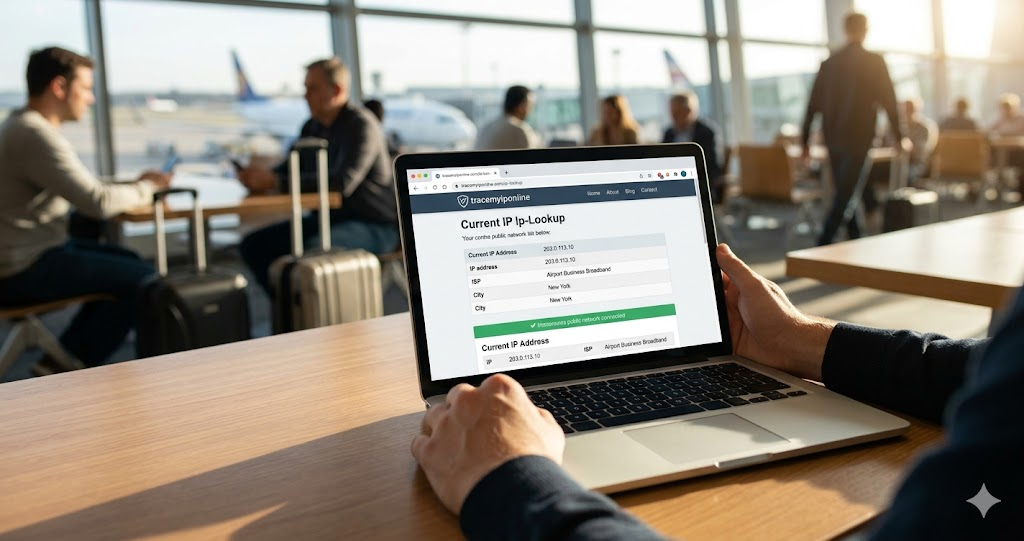
After connecting to a new network, visit tracemyiponline.com/ip-lookup. This shows your current public IP, the ISP name, and the connection type.
What to note:
ISP name: For a hotel WiFi, the ISP should be a corporate internet service provider — a business broadband provider or data center ISP. It should not be a residential ISP name. If you see "Comcast" or "BT Residential" on what should be a hotel network, something is unusual — potentially a hotspot from someone's phone rather than a legitimate business network.
Connection type: Should be consistent with a business or commercial network. Residential classification on a supposedly commercial network is worth noting.
IP reputation: An IP from a legitimate business network should have a clean reputation. Check at tracemyiponline.com/blacklist-checker — a blacklisted IP on a network you just connected to suggests the network has had issues previously.
This is not foolproof — a well-set-up evil twin with a commercial ISP connection would look similar to a legitimate network. But it catches common attacks and takes 30 seconds.
Before vs After: Using These Checks in Practice
Traveler connects to "Airport_WiFi_Free" at an international airport:
Step 1: Finds airport information desk, asks for official network name. Told it is "AirportNet_Secure." Their device shows three networks: "AirportNet_Secure," "Airport_WiFi_Free," and "AirportWifi." They connect to "AirportNet_Secure" only.
Step 2: Checks gateway IP in device settings — 10.14.0.1. Other business traveler in the same lounge shows the same gateway — consistent.
Step 3: Checks at tracemyiponline.com/ip-lookup — IP shows a major commercial ISP as the provider, clean reputation. Proceeds to use the network.
The two other networks ("Airport_WiFi_Free" and "AirportWifi") may be legitimate or may be rogue APs. By asking staff and verifying the gateway, they connected to the confirmed legitimate network without needing to know anything about the other two.
For California and New York Travelers: Airport and Hotel WiFi
California's major airports — LAX, SFO, SAN — and New York's — JFK, LGA, EWR — are high-traffic venues where WiFi security risks are real. Security researchers have documented rogue AP deployments at major airports. The FTC's consumer guidance for travel recommends using VPNs on public WiFi and exercising caution about network selection.
For California business travelers carrying CCPA-covered personal data or New York financial professionals subject to NYDFS regulations: connecting to an unverified network with sensitive data in transit creates compliance exposure. The three-check process takes 90 seconds and substantially reduces the risk. Test any VPN at tracemyiponline.com/vpn-detector before conducting sensitive work on a public network.
For London and UK Travelers
UK airports — Heathrow, Gatwick, Manchester — and rail stations with free WiFi (many managed by Virgin Media or BT) are heavily used and occasionally targeted. The NCSC's guidance on public WiFi includes verification recommendations before connecting and VPN use for sensitive activities.
For UK business travelers accessing corporate systems on public networks: many employers require VPN for any access to corporate resources from non-corporate networks. The gateway check and IP lookup process is an additional layer on top of this. Verify your VPN at tracemyiponline.com/vpn-detector after connecting.
For Toronto and Canadian Travelers
Toronto Pearson and Vancouver International airports both operate managed WiFi networks. Canadian government cybersecurity guidance through the CCCS recommends VPN use on public WiFi and caution about network selection. The three-check process is consistent with official Canadian cybersecurity recommendations.
For Ontario travelers: the PIPEDA obligations on businesses handling personal data extend to how that data is protected in transit. Accessing personal data over unverified public WiFi without a VPN could be argued as inadequate safeguards. Check at tracemyiponline.com/vpn-detector before accessing sensitive information.
For Sydney and Australian Travelers
Sydney Airport and Melbourne Airport both have free public WiFi. The ACSC's guidance on public WiFi includes the recommendation to verify you are connecting to the legitimate network before entering any sensitive credentials. The ACSC also recommends VPN use on public networks for business users.
For Australian users: the same checks apply regardless of which country's airport you are in. Check at tracemyiponline.com/ip-lookup after connecting, verify IP reputation at tracemyiponline.com/blacklist-checker, and test VPN at tracemyiponline.com/vpn-detector.
What to Do If Something Seems Off
If any check produces a result that does not make sense — different gateway IP from what staff confirmed, unexpected ISP name, blacklisted IP — the right response is to not use the network for anything sensitive.
Switch to mobile data instead. Your cellular connection uses your carrier's encrypted network rather than the questionable WiFi. For the duration of your time at that venue, mobile data is the safer option. The performance trade-off (data usage, potentially slower speed) is a much better alternative than routing sensitive traffic through a network that failed verification.
If you are certain there is a rogue AP operating at a venue, notify the venue's security staff. Airports and hotels take these reports seriously — a rogue AP on their premises is a liability issue for them.
Frequently Asked Questions
Is the IP Lookup tool free?
Yes — 100% free, no signup. Visit tracemyiponline.com/ip-lookup after connecting to any network and check your IP and ISP details instantly.
My gateway check shows a different IP from what another device shows — is that a problem?
It could be normal (different network segments, different subnet assignments) or it could indicate you are on different access points or networks. Ask the venue to clarify the expected gateway. If you cannot get clarification and the discrepancy seems significant, treat the network with caution.
Can I detect an evil twin attack reliably?
Not with 100% certainty using client-side checks alone. A sophisticated attacker who knows the legitimate network's exact configuration can replicate many indicators. The gateway IP check and staff verification catch most common attacks. For high-security situations (classified information, financial transactions), mobile data is the only reliably safe option.
Does HTTPS protect me on a rogue AP?
From content interception, mostly yes — HTTPS encryption prevents the attacker from reading your traffic content. But sophisticated attacks can attempt TLS interception (your device should warn about certificate errors — always heed these warnings). Credential theft through fake login pages that look like WiFi captive portals is a more common attack on public networks than direct TLS interception.
Should I disable auto-connect for public networks?
Yes — this is strongly recommended. Auto-connect to "previously connected" networks means your device might connect to a rogue AP with the same name as a network you connected to previously. On iPhone: Settings, WiFi, tap the network name, disable Auto-Join. On Android: the setting is typically in the network's advanced options. Disable auto-join for all public networks.
Can I use a VPN to protect against all public WiFi risks?
A VPN provides strong protection against traffic interception on public networks. It does not protect against captive portal phishing (fake login pages that appear before the VPN connects). Verify the VPN is active and leak-free at tracemyiponline.com/vpn-detector after connecting. Connect the VPN before entering any credentials on a public network.
The 90 Seconds Worth Spending
These checks are not perfect. A determined, well-resourced attacker can defeat all of them. But most public WiFi attacks are opportunistic and unsophisticated — looking for targets who do not check at all. Three quick verifications eliminate you as a target for the vast majority of attacks.
Verify the network name with staff. Check the gateway IP. Run a quick lookup at tracemyiponline.com/ip-lookup. Enable your VPN and verify it at tracemyiponline.com/vpn-detector. Check speed on the connection at tracemyiponline.com/speed-test. All free at TraceMyIPOnline.com.