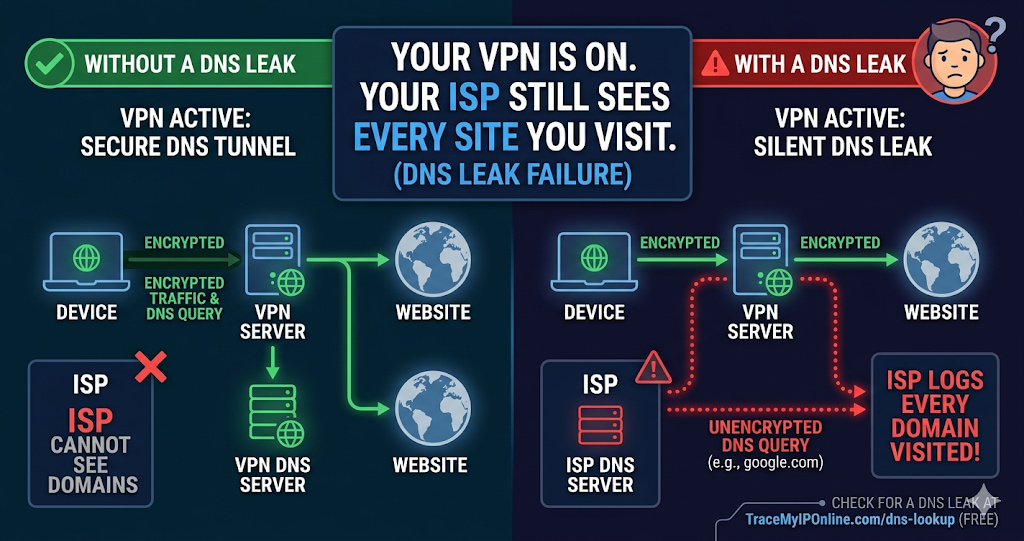
Your VPN is on. Your traffic is encrypted. But if your DNS queries are bypassing the VPN tunnel and going directly to your ISP's servers, your ISP still has a complete log of every website domain you visit. This is called a DNS leak, and it is more common than most VPN users realize. Check whether your DNS is leaking free at TraceMyIPOnline.com — no signup needed.
Your VPN Is On. Your ISP Still Sees Every Site You Visit.
This is not a hypothetical. It is a specific technical failure called a DNS leak, and it affects a significant percentage of VPN users who believe they are fully protected.
When you type a website address into your browser, before any page loads, your device needs to translate that domain name into an IP address. This translation is called a DNS query. If your VPN is working correctly, those queries go through the VPN's encrypted tunnel to the VPN's own DNS servers. If your VPN has a DNS leak, those queries go directly to your ISP's DNS servers — completely outside the VPN tunnel — and your ISP logs every domain you look up.
Your traffic is encrypted. Your destination is not. That is the DNS leak problem in one sentence.
"A DNS leak is a silent failure. The user sees the VPN connected. The traffic is encrypted. But the DNS queries are going to the ISP, which means the ISP has a complete record of every site visited — even if they cannot read the content of the visits. For anyone using a VPN specifically to limit ISP visibility, a DNS leak makes the whole exercise pointless. The frustrating thing is that most VPN apps give no indication when this is happening."
— Dr. Nadia Okonkwo, Network Privacy Researcher, Queen Mary University of London
How DNS Works — And Where the Leak Happens
DNS (Domain Name System) is the phone book of the internet. Every time you visit a website, before your browser can send any request, it queries a DNS server to find out which IP address that domain maps to. google.com maps to one of Google's IP addresses. Your bank's domain maps to their server IP. This lookup happens for every domain, every time.
By default, your device uses the DNS servers your ISP provides — usually assigned automatically when you connect to the internet. These ISP DNS servers log every query. That log is a complete record of every website domain your device looks up.
When you connect to a VPN, the goal is to route this DNS traffic through the VPN tunnel to the VPN provider's own DNS servers. Those servers do not log your queries (reputable providers, anyway) and your ISP only sees encrypted VPN traffic going to one endpoint — not the individual site destinations.
A DNS leak happens when some or all DNS queries bypass the VPN tunnel and still reach your ISP's servers. The VPN encrypts your HTTP/HTTPS traffic, but the DNS queries — which tell your ISP where that traffic is going — travel outside the tunnel.
Why DNS Leaks Happen — The Technical Causes
Windows Smart Multi-Homed Name Resolution: Windows 8 and later versions have a feature that sends DNS queries to all available network interfaces simultaneously to get the fastest response. When a VPN is active, Windows still queries your ISP's DNS alongside the VPN's DNS. The ISP DNS response is used if it is faster. This is enabled by default and many VPN clients do not disable it.
IPv6 DNS not tunneled: Many VPNs tunnel IPv4 traffic but ignore IPv6. If your router has IPv6 DNS servers configured (common with modern ISPs), IPv6 DNS queries will bypass the VPN entirely, regardless of IPv4 DNS being properly tunneled.
Split tunneling misconfiguration: Split tunneling allows some traffic to bypass the VPN while other traffic goes through it. If DNS traffic is accidentally included in the non-VPN split, it goes directly to your ISP.
DHCP DNS override: When you connect to a network (home WiFi, corporate network, public hotspot), the network's DHCP server assigns DNS settings to your device. If the VPN client does not properly override these DHCP-assigned DNS servers with its own, your device continues using the network's DNS — which may be your ISP's servers.
VPN client bugs: Some VPN clients have had documented bugs where DNS settings were not properly applied after specific connection events — server switches, network changes, device wake from sleep. These bugs cause intermittent DNS leaks that are particularly hard to catch.
How to Check for a DNS Leak — Two Methods
Method 1: DNS Lookup Tool. With your VPN connected, visit tracemyiponline.com/dns-lookup and look up a domain. The response should show DNS resolution coming through your VPN provider's infrastructure or a privacy-focused DNS provider — not your ISP. If the DNS response references your ISP's name servers (BT, Comcast, Rogers, Telstra, etc.), you have a DNS leak.
Method 2: Compare ISP name with and without VPN. Disconnect VPN, note your current IP and ISP at tracemyiponline.com/ip-lookup. Connect VPN. If the ISP name shown changes to your VPN provider or a neutral hosting company, traffic is routing correctly. If your original ISP name still appears even though the IP changed, something is being routed incorrectly.
Before vs After: DNS Leak Detection in Practice
User: ExpressVPN subscriber, UK connection, connected to US server for three months without DNS leak checking.
Before testing — user's assumption: "I'm connected to a US VPN server. My IP shows as US. My traffic is encrypted. I'm protected."
DNS lookup test results: The DNS query response shows resolution through BT DNS servers (UK ISP). IP is correctly showing US VPN server location. Conclusion: IP is masked, but DNS is leaking through BT. BT can see every domain the user visits.
Root cause: Windows Smart Multi-Homed Name Resolution was sending DNS queries to all available interfaces. The BT router's DNS responded faster than ExpressVPN's DNS, so Windows used the BT result.
Fix applied: Disabled Smart Multi-Homed Name Resolution via Windows Group Policy. ExpressVPN's DNS leak protection setting enabled in the app.
After fix: DNS lookup shows resolution through ExpressVPN's own DNS servers. No BT DNS entries visible. ISP cannot see DNS queries. ✅
How to Fix a DNS Leak
Enable DNS leak protection in your VPN app: Most reputable VPN clients have a setting called "DNS leak protection" or "prevent DNS leaks." Find it in the app's advanced settings and enable it. This tells the VPN client to force all DNS traffic through the VPN tunnel, even if Windows or other system components try to use alternative DNS servers.
Manually set DNS servers to your VPN provider's addresses: In Windows, go to Network Settings, select your VPN connection, click Properties, select Internet Protocol Version 4, click Properties, and set preferred and alternate DNS servers to your VPN provider's DNS addresses (listed in their documentation). Do the same for IPv6 settings.
Disable Smart Multi-Homed Name Resolution (Windows): Open Group Policy Editor (gpedit.msc). Navigate to Computer Configuration, Administrative Templates, Network, DNS Client. Find "Turn off smart multi-homed name resolution" and set it to Enabled. Restart your network adapter.
Use Cloudflare's DNS over HTTPS (1.1.1.1): Configuring your browser to use DNS over HTTPS (DoH) bypasses the operating system's DNS configuration entirely. In Chrome: Settings, Privacy and Security, Security, Use secure DNS, and select Cloudflare (1.1.1.1). This does not fix the system-level leak but protects browser-based DNS lookups. Verify the result at tracemyiponline.com/dns-lookup.
On a Mac: Go to System Preferences, Network, select your connection, click Advanced, select DNS tab. Remove ISP DNS entries and add your VPN provider's DNS addresses or privacy-focused alternatives (1.1.1.1, 9.9.9.9).
For California and New York Users: DNS Leaks and ISP Data Practices
In 2017, Congress voted to allow US ISPs to sell customer browsing data without opt-in consent. Comcast, AT&T, Spectrum, and Verizon — the dominant ISPs in California and New York — all collect DNS query data as standard practice. California's CCPA gives residents the right to opt out of data sales, but exercising that right requires knowing the data is collected — and most users do not know DNS queries are logged separately from browsing history.
For California and New York VPN users specifically trying to prevent ISP data collection: DNS leaks completely undermine this goal. The ISP sees every domain you look up even with an encrypted VPN tunnel. Check your DNS leak status at tracemyiponline.com/dns-lookup and verify your VPN is actually protecting you at tracemyiponline.com/vpn-detector.
For London and UK Users: DNS Leaks Under RIPA and IPA
The Regulation of Investigatory Powers Act 2000 and Investigatory Powers Act 2016 give UK law enforcement access to internet connection records — which include DNS queries — retained by ISPs. BT, Sky, Virgin Media, and TalkTalk all retain this data for 12 months.
Many UK users run VPNs specifically to reduce what ends up in these retained records. A DNS leak means your ISP's retained records include every domain you visit — exactly the data the retention regime captures. The VPN encrypts the traffic content but the DNS leak still tells the ISP where you went.
Test your DNS leak status at tracemyiponline.com/dns-lookup. If you see your UK ISP's DNS servers in the results while your VPN is connected, your DNS is leaking.
For Toronto and Ontario Users: DNS Privacy and PIPEDA
Canadian ISPs including Rogers and Bell retain DNS query logs as part of standard network operations. PIPEDA requires meaningful consent for collection of personal information, and while ISPs argue DNS logs are operational data rather than personal data, the OPC has taken a broader view in recent findings.
For Ontario users running VPNs to limit ISP data collection: a DNS leak means Rogers or Bell still has a complete record of your domain lookups, regardless of whether the underlying traffic is encrypted. Check at tracemyiponline.com/dns-lookup and cross-check with our VPN Detector.
For Sydney and Australian Users: DNS and the Two-Year Retention Regime
Australia's data retention laws require ISPs to retain metadata — including internet connection records that encompass DNS queries — for two years. Telstra, Optus, and TPG all comply with this requirement. Australian users who run VPNs to limit what ends up in this two-year retention window should verify their DNS is not leaking — otherwise the retained records include their DNS queries regardless of VPN use.
The Australian government's own guidance on VPN use acknowledges that DNS configuration matters for privacy effectiveness. Test your DNS configuration at tracemyiponline.com/dns-lookup.
The Difference Between Using a VPN and a VPN That Actually Works
Paying for a VPN subscription and running a VPN that actually protects you are not the same thing. The gap between them is usually DNS configuration.
A VPN that properly tunnels DNS means: your ISP sees encrypted traffic going to one endpoint (the VPN server). That is all. No domain queries, no browsing destinations, no indication of what you are doing beyond the fact that you are using a VPN.
A VPN with a DNS leak means: your ISP sees all of the above, plus a complete log of every domain you look up. The content of your traffic is encrypted. The map of where you went is not.
Check your DNS configuration now at tracemyiponline.com/dns-lookup. Test your full VPN protection at tracemyiponline.com/vpn-detector. Check your IP profile at tracemyiponline.com/ip-lookup. All free at TraceMyIPOnline.com.
Frequently Asked Questions
Is the DNS Lookup tool completely free?
Yes — 100% free, no signup, unlimited checks. Visit tracemyiponline.com/dns-lookup and check any domain's DNS records instantly.
Does changing DNS servers to 1.1.1.1 fix a DNS leak?
It depends on the cause. Changing DNS servers to 1.1.1.1 or 8.8.8.8 replaces your ISP's DNS with a faster, more private alternative — but if the underlying problem is that DNS traffic bypasses the VPN tunnel, changing the destination server does not fix the bypass. The DNS still leaks outside the tunnel, just to 1.1.1.1 instead of your ISP. Enable DNS leak protection in your VPN app to force all DNS through the tunnel.
Can I have a DNS leak without a VPN?
Without a VPN, all DNS goes to your ISP by default — that is the standard configuration, not a leak. The term "DNS leak" refers specifically to DNS bypassing a VPN or privacy tool that was supposed to route it differently. Our DNS Lookup tool is useful for checking which DNS servers you are using in any configuration.
What DNS servers should a properly working VPN use?
Your VPN provider's own DNS servers — listed in their documentation. Reputable providers operate no-log DNS servers specifically for VPN users. Some VPNs use trusted third-party no-log DNS providers (1.1.1.1, 9.9.9.9) instead of their own, which is also acceptable. Your ISP's DNS should not appear anywhere in the results.
How do I know which DNS servers my ISP uses?
Disconnect your VPN, visit tracemyiponline.com/dns-lookup, and look up any domain. The DNS servers shown in the response are your current DNS servers — without the VPN, these are your ISP's servers. Note these addresses. When you reconnect your VPN and run the same check, none of these addresses should appear.