Learn how to change your IP address on Windows, Mac, iPhone, Android, and home routers. Step-by-step guide to safely reset, hide, or switch your public and private IP address in 2026.
How to Change Your IP Address on Any Device in 2026 (Step-by-Step Guide)
Published: August 12, 2026 | Last Updated: August 12, 2026 | 12 min read
Changing your IP address is one of the most effective ways to protect your online privacy, bypass geographical content restrictions, fix network connection errors, and prevent online tracking. Whether you want to switch your public IP address visible to the entire internet or reset your local private IP address assigned by your home router, the process is straightforward once you know the right steps.
This comprehensive 2026 guide provides exact, step-by-step instructions to change your IP address on Windows 11/10, macOS, iOS, Android, and home routers, along with proven strategies to mask your identity online.
---
### Quick Answer: How Do You Change Your IP Address Fast?
To change your **Public IP address** (the address websites and online services see), the fastest method is to connect to a virtual private network (VPN) or restart your internet router/modem. To change your **Private IP address** (the address assigned to your device within your local network), you can release and renew your IP via your operating system's command line or network settings.
---
### Public IP vs. Private IP: What Are You Actually Changing?
Before changing your settings, it is crucial to understand the two distinct types of IP addresses assigned to your hardware.
Published: August 12, 2026 | Last Updated: August 12, 2026 | 12 min read
Changing your IP address is one of the most effective ways to protect your online privacy, bypass geographical content restrictions, fix network connection errors, and prevent online tracking. Whether you want to switch your public IP address visible to the entire internet or reset your local private IP address assigned by your home router, the process is straightforward once you know the right steps.
This comprehensive 2026 guide provides exact, step-by-step instructions to change your IP address on Windows 11/10, macOS, iOS, Android, and home routers, along with proven strategies to mask your identity online.
---
### Quick Answer: How Do You Change Your IP Address Fast?
To change your **Public IP address** (the address websites and online services see), the fastest method is to connect to a virtual private network (VPN) or restart your internet router/modem. To change your **Private IP address** (the address assigned to your device within your local network), you can release and renew your IP via your operating system's command line or network settings.
---
### Public IP vs. Private IP: What Are You Actually Changing?
Before changing your settings, it is crucial to understand the two distinct types of IP addresses assigned to your hardware.
+-----------------------------------------------------------------------------------+ | THE INTERNET | +-----------------------------------------------------------------------------------+ | [ Public IP ] (Assigned by ISP to Router) | +---------------+ | Router/ | | Modem | +---------------+ | +-----------------+-----------------+ | | | [ Private IP ] [ Private IP ] [ Private IP ] 192.168.1.10 192.168.1.11 192.168.1.12 | | | (Windows PC) (MacBook) (iPhone)
1. **Public IP Address:** Your Internet Service Provider (ISP) assigns this unique identifier to your home router. Every device connected to your Wi-Fi network shares this single public IP address when communicating with outside websites.
2. **Private IP Address:** Your home router assigns this internal address to individual devices (laptops, phones, smart TVs) connected to your local Wi-Fi. It allows your router to route incoming internet data to the correct device inside your household.

---

### Side-by-Side Comparison of IP Changing Methods

| Method | Changes Public IP? | Changes Private IP? | Security & Encryption Level | Ease of Execution | Primary Use Case |
| :--- | :--- | :--- | :--- | :--- | :--- |
| **Virtual Private Network (VPN)** | Yes | No | **High (AES-256 / WireGuard)** | Very Easy (1-Click) | Daily Privacy, Streaming, Public Wi-Fi |
| **Proxy Server** | Yes | No | **Low to None** | Moderate | Browser-only tasks, Quick location change |
| **Router Restart / Power Cycle** | Yes (Dynamic IPs only) | No | **Depends on Network** | Easy (Wait 5-10 mins) | Resetting stuck connections, IP bans |
| **Release & Renew (Command Line)** | No | Yes | **N/A (Local Network)** | Moderate | Fixing Wi-Fi IP conflict errors |
| **Manual Network Configuration** | No | Yes | **N/A (Local Network)** | Advanced | Assigning static IPs for local servers |

---

### Method 1: How to Change Your Public IP Address

#### 1. Use a Secure Virtual Private Network (VPN)
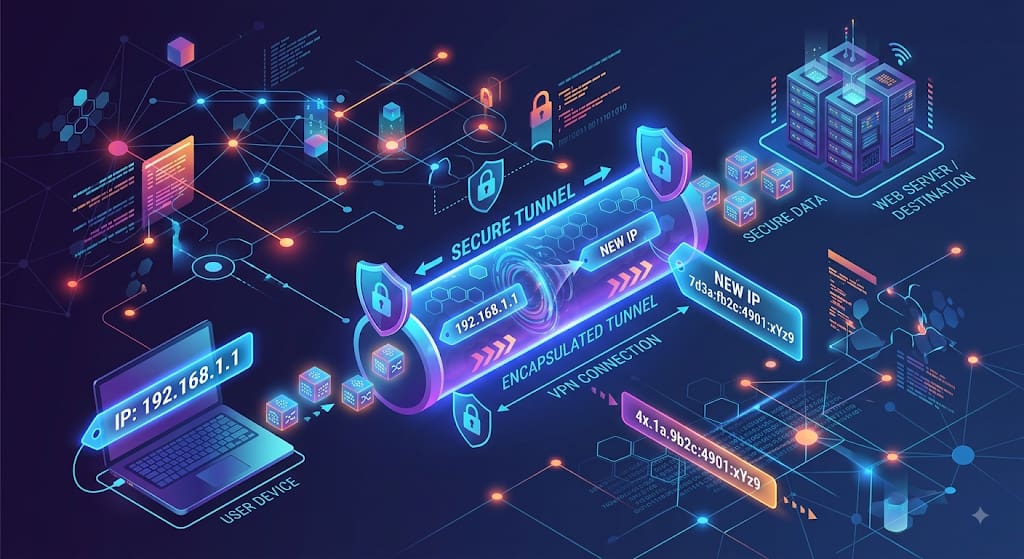
Using a VPN is the most reliable way to change your public IP address instantly. When you connect to a VPN server, your internet traffic is routed through an encrypted tunnel. Websites no longer see your home IP; instead, they record the IP address of the VPN server.

* **Step 1:** Download a trusted VPN software onto your device.
* **Step 2:** Open the application and choose a server location (e.g., United States, United Kingdom, Canada).
* **Step 3:** Click **Connect**.
* **Step 4:** Verify your new public IP address using our free [Trace My IP Address Lookup Tool](https://www.tracemyiponline.com/).

#### 2. Power Cycle Your ISP Modem or Router
Most residential Internet Service Providers (ISPs) assign **Dynamic IP addresses** using the DHCP protocol. When your modem turns off, your ISP releases your allocated public IP back into its pool.

* **Step 1:** Unplug the power cable from your router and modem.
* **Step 2:** Wait **at least 5 to 10 minutes** (some ISPs require up to 30 minutes for the lease to expire).
* **Step 3:** Plug the modem and router back into power.
* **Step 4:** Once the internet indicator lights turn solid green, check your IP address to confirm if a new public IP was assigned.

#### 3. Connect to a Proxy Server
A proxy server acts as an intermediary between your web browser and destination servers. While it masks your public IP address for specific web browser traffic, it generally does not encrypt your broader system traffic.

* **Step 1:** Obtain a clean proxy IP address and port number from a verified provider.
* **Step 2:** Open your browser's network settings menu.
* **Step 3:** Enter the proxy IP address and port under the Network Proxy configuration tab.
* **Step 4:** Save your settings and verify your location on [Trace My IP](https://www.tracemyiponline.com/).

---

### Method 2: How to Change Your Private IP Address on Windows 11 and Windows 10

If you are experiencing local IP configuration conflicts or "No Internet, Secured" errors on Windows, resetting your local IP address resolves the issue immediately.

#### Option A: Release and Renew IP via Command Prompt (Automated)

1. Press the **Windows Key + S**, type `cmd`, right-click **Command Prompt**, and select **Run as Administrator**.
2. Type the following command and press **Enter**:
   ```cmd
   ipconfig /release
(This drops your current local IP address assigned by the router). 3. Type the following command and press Enter:
DOS
ipconfig /renew
(This requests a fresh private IP address from your router's DHCP server). 4. Clear stale network caches by executing:
DOS
ipconfig /flushdns
Option B: Set a Static Private IP Address via Windows Settings
- Open Settings (Win + I) and click Network & internet.
- Select Wi-Fi or Ethernet (depending on your active connection).
- Click on Hardware properties or your connected network name.
- Next to IP assignment, click Edit.
- Change the dropdown menu from Automatic (DHCP) to Manual.
- Toggle IPv4 to On.
- Enter your desired static configuration:
- IP address: 192.168.1.150 (Ensure this falls outside your router's active lease range)
- Subnet mask: 255.255.255.0
- Gateway: 192.168.1.1 (Your router's IP address)
- Preferred DNS: 8.8.8.8 (Google Public DNS) or 1.1.1.1 (Cloudflare DNS)
- IP address: 192.168.1.150 (Ensure this falls outside your router's active lease range)
- Click Save.
Method 3: How to Change Your Private IP Address on Mac (macOS)
Changing your internal IP address on Apple computers can be completed through the macOS System Settings.
- Click the Apple logo in the top left corner and select System Settings.
- Click Network in the left sidebar, then select your active connection (Wi-Fi or Ethernet).
- Click Details... next to your active network connection.
- Select the TCP/IP tab from the sidebar menu.
- Next to Configure IPv4, click the dropdown menu:
- Select Renew DHCP Lease to instantly request a new private IP address automatically.
- Select Using DHCP with manual address to manually specify a private IP (e.g., 192.168.1.175).
- Select Renew DHCP Lease to instantly request a new private IP address automatically.
- Click OK and select Apply.
Method 4: How to Change Your IP Address on iPhone (iOS) and Android
Changing IP Address on iPhone (iOS)
- Open Settings on your iPhone and tap Wi-Fi.
- Tap the Information icon (i) next to your connected Wi-Fi network name.
- Scroll down to the IPv4 Address section and tap Configure IP.
- Select Manual to input a custom local IP address, or tap Renew Lease under Automatic settings to request a fresh IP from the router.
Changing IP Address on Android Devices
- Open Settings and tap Network & Internet (or Connections).
- Tap Wi-Fi and select the gear settings icon next to your network.
- Tap the Pencil / Edit icon or select View More.
- Change IP Settings from DHCP to Static.
- Input your desired local IP address in the IP address field and tap Save.
Regional Considerations for Users in Tier-1 Countries
Privacy legislation, ISP logging rules, and network security practices vary significantly across major Tier-1 jurisdictions.
Guidelines for United States Users (California Privacy & Federal Rules)
In the US, major broadband providers (such as Comcast Xfinity, AT&T, and Spectrum) assign dynamic public IPs with long lease duration times ("sticky IPs"). Turning off your router for 60 seconds often yields the same IP. To change a sticky public IP in the US:
- Leave your modem disconnected overnight (8+ hours), or
- Use an encrypted VPN service with verified no-logs compliance under federal and state regulations like the California Consumer Privacy Act (CCPA).
Guidelines for United Kingdom Users (UK Investigatory Powers Act)
Under the UK's Investigatory Powers Act, internet providers (including BT, Virgin Media, and Sky) are legally required to record connection metadata and public IP assignment logs for up to 12 months. UK users changing their IP address to maintain digital privacy should ensure their VPN or privacy provider uses RAM-only servers to prevent data persistence.
Guidelines for Canadian Users (PIPEDA Compliance)
Canadian internet service providers (Bell, Rogers, Telus) utilize automatic DHCP assignment pools. However, shared residential Wi-Fi networks in high-density urban Condos across Toronto, Vancouver, and Montreal frequently suffer from local IP address conflicts. Executing a manual DHCP release (ipconfig /renew or macOS lease renewal) resolves local connectivity stalls instantly.
Guidelines for Australian Users (Data Retention Legislation)
Australia's Telecommunications Interception and Access Act mandates that telecommunication carriers retain customer metadata for two years. Australian internet users seeking an IP address change for security and privacy protection should use protocols like WireGuard or OpenVPN to route traffic outside local ISP tracking scope.
Common Pitfalls to Avoid When Changing Your IP
- Confusing Private IP Changes with Public Privacy: Changing your computer's local IP address (192.168.x.x) does not hide your identity from external websites. Websites still record your router's public IP address.
- Using Unverified Free Proxies: Free proxy servers often log full browsing histories, inject malicious advertisements into HTTP sessions, or operate without SSL/TLS encryption.
- Ignoring WebRTC Leaks: Even when connected to a VPN or proxy, web browsers with WebRTC enabled can leak your true residential IPv4/IPv6 address to web servers via JavaScript requests. Always run a leak test after changing your settings.
- IP Conflicts on Local Networks: Assigning a manual static IP address that is already in use by another household device causes connection dropping across both hardware units.
Frequently Asked Questions (FAQs)
Is it legal to change your IP address?
Yes, changing your IP address is completely legal in the United States, United Kingdom, Canada, Australia, and most democratic nations. Millions of users change their IP addresses daily for network administration, privacy protection, and remote work.
Does restarting your router change your public IP address?
Restarting your router changes your public IP address only if your ISP allocates Dynamic IP addresses. If your ISP charges for or assigns a Static IP address, restarting the router will re-assign the exact same public IP.
How do I check if my IP address actually changed?
You can verify your current public IP address before and after making changes by visiting our free Trace My IP Address Checker. If the numerical string, ISP name, or geolocation changes, your IP transition was successful.
Does changing my IP address hide my browsing history from my ISP?
Changing your private IP does not hide your history. Using a proxy masks your IP from websites, but your ISP can still monitor domain requests. Only an encrypted VPN connection hides your full browsing activity and network requests from your Internet Service Provider.
What is the difference between IPv4 and IPv6 addresses?
IPv4 uses a 32-bit numerical formatting (e.g., 192.168.1.1), supporting roughly 4.3 billion unique addresses globally. IPv6 uses a 128-bit alphanumeric formatting (e.g., 2001:0db8:85a3:0000:0000:8a2e:0370:7334) to provide trillions of additional unique addresses for modern connected devices.
Final Thoughts
Changing your IP address is a fundamental skill for maintaining online security, troubleshooting network errors, and safeguarding personal data. Whether you choose the instant privacy of a VPN, the simple network reset of a modem power cycle, or manual operating system adjustments, controlling your network identity ensures a safer digital experience.
Want to check what location and ISP details your current connection is exposing to the web? Verify your connection details in seconds with our Free Trace My IP Lookup Tool.
Related Guides & Tools