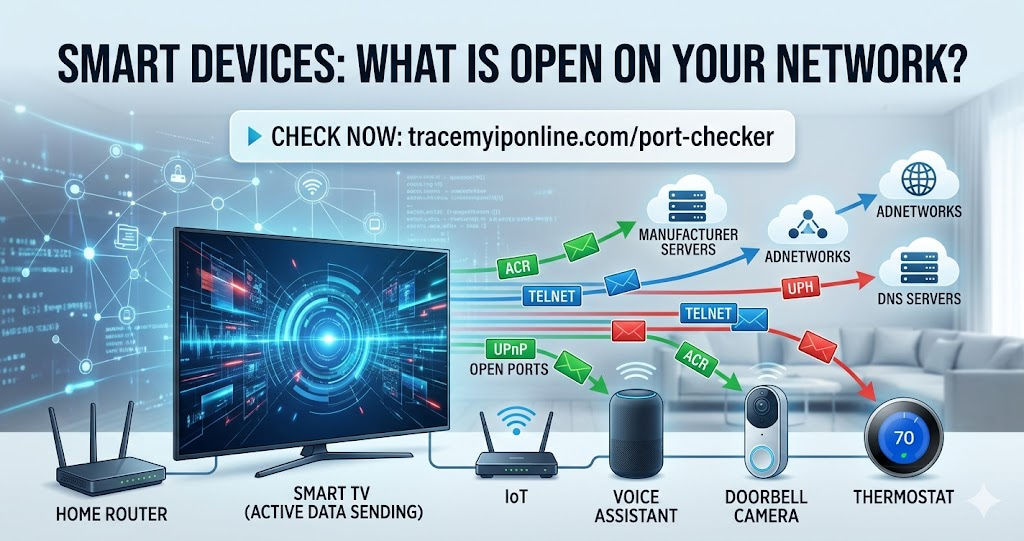
Smart home devices are networked computers. A smart TV, a doorbell camera, a thermostat, a voice assistant — each is connected to your network, running software you did not write, communicating with servers you cannot see. The practical security question is not whether these devices send data. They do, by design. The question is whether they have ports open that should not be there, and what your network's exposure looks like because of them.
Your Smart TV Has Been Sending Data Since You Plugged It In
Smart home devices are networked computers. That sounds obvious when stated directly, but the implications are not treated with the same seriousness as a computer or a phone. A smart TV, a doorbell camera, a thermostat, a voice assistant — each is a device connected to your network, running software you did not write, communicating with servers you cannot see, on a schedule you did not set.
The practical security question is not whether these devices send data — they do, by design. The question is whether they have ports open on your network that should not be there, whether they share an IP that is now on blacklists because of their behavior, and what your network's overall exposure looks like because of them.
Check what is open on your network right now at tracemyiponline.com/port-checker — free, no download, no signup.
"The smart home attack surface is different from traditional endpoint security in one important way: most IoT devices cannot be patched in any meaningful sense. The TV manufacturer issues a firmware update every 18 months. The camera manufacturer goes out of business. The smart speaker's operating system stops receiving security updates after three years. These devices sit on networks for five, eight, ten years, running software with known vulnerabilities that will never be fixed. Network segmentation is not optional in a home with IoT devices — it is the only viable mitigation."
— Dr. Mia Bergstrom, IoT Security Research Lead, Chalmers University of Technology
What Smart Home Devices Actually Do on Your Network
Most users have no visibility into what their smart devices are doing at the network level. The behavior varies by device and manufacturer, but common patterns observed in IoT traffic research include:
Continuous check-in traffic: Smart devices frequently contact their manufacturer's servers — checking for firmware updates, sending telemetry, maintaining persistent connections. Samsung Smart TVs have been observed contacting Samsung servers every 10-15 minutes. Nest thermostats maintain continuous connections to Google's infrastructure. This is expected behavior — the question is whether it is acceptable to you.
Automatic Content Recognition (ACR): Smart TVs from major manufacturers — Samsung, LG, Vizio, Roku — capture frames from whatever is on screen, including content from HDMI-connected devices. This data is used to serve targeted advertising. The privacy settings to disable ACR exist but are buried, and some manufacturers re-enable collection after firmware updates.
UPnP port opening: Many smart home devices use UPnP (Universal Plug and Play) to automatically open ports in your router's firewall without notifying you. A gaming console opening port 3074, a media server opening port 32400, an IP camera opening port 8080 — all without your explicit permission. Check which ports are currently open at tracemyiponline.com/port-checker.
DNS queries to unexpected servers: Some smart devices contact DNS servers other than your configured one — bypassing privacy-focused DNS like 1.1.1.1 or 9.9.9.9 and going directly to manufacturer-controlled or third-party analytics DNS infrastructure. This is a form of tracking that persists even when you have changed your router's DNS settings. Check your current DNS at tracemyiponline.com/dns-lookup.
How to Check Your Network's IoT Exposure
Step 1: External port scan. Run a port scan at tracemyiponline.com/port-checker from your public IP address. Pay particular attention to: port 8080 (common for IP camera management), port 5900 (VNC, used by some IoT devices), port 1900 (UPnP discovery — if this is open externally, UPnP is dangerously misconfigured), port 49152-65535 (high ports often used by UPnP-opened services).
Step 2: Router admin review. Log into your router admin (192.168.1.1 or similar). Check: the connected devices list for devices you do not recognize; port forwarding rules for entries you did not create; and UPnP settings — disable it if possible, then check whether any rules it previously created remain and delete them.
Step 3: IP reputation check. Some IoT devices participate in botnet activity when compromised. Check your IP's reputation at tracemyiponline.com/blacklist-checker. If your IP appears on spam or malware blacklists, a compromised device on your network is a possible cause.
Step 4: DNS review. Check at tracemyiponline.com/dns-lookup what DNS is resolving for your connection. If you have configured 1.1.1.1 or 9.9.9.9 but your DNS lookup shows ISP servers, something on your network is overriding your DNS configuration.
Before vs After: Network Security With and Without IoT Attention
Typical home network with 12 smart devices — untested, default settings: External port scan shows: port 8080 OPEN (IP camera management interface, accessible from anywhere on the internet), port 23 OPEN (Telnet — old smart TV remote management), port 49152 OPEN (UPnP-opened port for a media server). Router admin shows: 7 UPnP-created port forwarding rules, 3 of which correspond to devices no longer on the network. IP reputation: appears on SORBS DUHL blacklist.
After remediation: UPnP disabled. All 7 UPnP rules deleted. IP camera reconfigured to local-only access, port forwarding rule deleted. Smart TV Telnet disabled in TV settings. SORBS listing investigated — old gaming console was sending unusual traffic, since replaced. New console added to isolated IoT network segment. Port scan shows all three ports CLOSED. IP reputation: clean. ✅
For California and New York Users: Smart Home Privacy Laws
California's SB-327, effective January 2020, requires smart home devices sold in California to have "reasonable security features" — a vague standard that has been interpreted as requiring unique default passwords rather than the previously common "admin/admin" defaults. California's CCPA covers data collected by smart home devices as personal information when it relates to California residents.
New York's IoT Security Law (passed 2021) has similar requirements for unique device passwords. Neither law gives consumers visibility into what their smart devices are actually sending or to whom. For California and New York residents: the legal framework exists, but practical security requires the network checks described here rather than reliance on regulatory standards alone. Check your network's exposure at tracemyiponline.com/port-checker.
For London and UK Users: Smart Home Devices and the Product Security Act
The UK Product Security and Telecommunications Infrastructure Act 2022 (PSTI Act) sets security requirements for consumer IoT devices sold in the UK, effective April 2024. Requirements include: no universal default passwords, a published vulnerability disclosure policy, and a stated minimum security update period. Manufacturers must declare how long security support will last at the point of sale.
For London, Manchester, and Birmingham consumers: the PSTI Act improves the baseline for new devices, but devices purchased before April 2024 are not covered. The network exposure from existing devices still requires active management. Check open ports at tracemyiponline.com/port-checker and IP reputation at tracemyiponline.com/blacklist-checker.
For Toronto and Ontario Users: Smart Home Devices and PIPEDA
Under PIPEDA, smart home device manufacturers collecting personal information from Canadian users must have a clearly stated purpose, obtain meaningful consent, and allow access and correction requests. The OPC has issued guidance on IoT devices specifically, noting that many IoT privacy policies fail to clearly disclose what data is collected and how it is used.
For Ontario consumers: PIPEDA provides rights, but enforcement requires knowing what data is collected — which most device manufacturers make difficult to determine. Network monitoring and port checking gives you the technical picture independently of what manufacturer privacy policies claim. Check at tracemyiponline.com/port-checker.
For Sydney and Australian Users: Smart Home Devices and the Privacy Act
Australia's Privacy Act 1988 and the Australian Privacy Principles cover personal information collected by smart home devices from Australian consumers. The OAIC has identified IoT as a priority area given the volume of personal information collected with limited transparency.
The ACSC's consumer guidance recommends treating smart home devices as security risks and includes network segmentation in its recommendations. For Sydney and Melbourne users: smart devices connected to the same network as your computers and phones represent potential lateral movement risk if compromised. Check your network's port exposure at tracemyiponline.com/port-checker and IP reputation at tracemyiponline.com/blacklist-checker.
Practical Steps to Improve Smart Home Network Security
Network segmentation (most effective): Create a separate WiFi network for smart home devices — most modern routers support a "guest network" that is isolated from your main network. Put all IoT devices on this network. If a smart camera or TV is compromised, it cannot access your computers, phones, or NAS drives because they are on a separate segment.
Disable UPnP: Find the UPnP setting in your router admin (usually under Advanced or Network settings). Disable it. Then delete any port forwarding rules that UPnP previously created. Smart devices that legitimately need external access can be configured with specific, intentional port forwarding rules instead of automatic ones.
Disable ACR on smart TVs: For Samsung: Settings, Support, Terms & Privacy, Viewing Information Services — disable. For LG: Settings, All Settings, General, AI Service, AI Service — disable. For Vizio: Admin & Privacy, Viewing Data — opt out. For Roku: Settings, Privacy, Smart TV Experience — uncheck Use Info from TV Inputs.
Change default device passwords: Any smart device with a web interface or admin panel has a default password. Change it. Default credentials for popular devices are publicly listed in manufacturer documentation — meaning anyone who finds the device's open port can try the default password first.
Keep firmware updated: Smart device firmware updates often patch security vulnerabilities. Enable automatic updates where available, and periodically check for updates manually on devices that do not update automatically.
Frequently Asked Questions
Is the Port Checker tool free to use?
Yes — 100% free, no signup, no limits. Visit tracemyiponline.com/port-checker and check any port on any IP address instantly.
My smart TV shows an open port — how do I close it?
First, identify which service is using that port — check your TV's settings for any remote access or remote control features and disable them. Second, check your router's port forwarding rules and delete any rules forwarding that port. Third, check UPnP settings — if UPnP is enabled, it may recreate the rule. Disable UPnP and verify the port is closed on rescan.
Is it safe to have smart devices on the same network as my computers?
It is common but not ideal. A compromised smart device on a shared network can potentially scan and attack other devices on the same network. Network segmentation — putting IoT devices on a separate WiFi network — is the standard security recommendation. The guest network feature on most modern routers does this without requiring additional hardware.
Do smart speakers listen to everything I say?
Smart speakers listen for their wake word continuously. Audio before the wake word is processed locally and not sent to servers according to manufacturer statements — though this has been disputed in research. After the wake word, audio is sent to cloud servers for processing. Multiple research studies have found false wake word activations that resulted in brief audio clips being sent unintentionally. Muting the device microphone when not in use is the most reliable mitigation.
How do I know if a device on my network is compromised?
Signs include: unusual router traffic volumes, your IP appearing on blacklists (check at tracemyiponline.com/blacklist-checker), ISP warnings about unusual traffic, and devices behaving erratically. Network monitoring tools can show which devices are generating unusual traffic volumes or contacting unexpected destinations — though these require more setup than a simple port scan.
Should I disconnect smart home devices from the internet entirely?
That eliminates smart features that depend on cloud connectivity — remote access, voice assistant functionality, automatic updates. For high-risk devices like cameras in sensitive areas, local-only operation (no internet access) is a valid choice. For most devices, network segmentation is a better balance — they maintain their useful features while being isolated from your more sensitive devices.
The Devices You Added for Convenience
Smart home devices were added for specific reasons — convenience, security, entertainment. The network security implications were probably not part of the decision. That is fine; it is how most people approach this. The question now is whether the accumulated exposure is worth checking.
A 20-minute review — port scan, router admin check, IP reputation check — gives you a clear picture. Most people find a few things worth fixing. Some find more. The scan itself is free and the fixes are usually router settings changes that take a few minutes.
Start the port scan at tracemyiponline.com/port-checker. Check your IP reputation at tracemyiponline.com/blacklist-checker. Verify your full IP profile at tracemyiponline.com/ip-lookup. All free at TraceMyIPOnline.com.